
Agent Build Log — Episode 028
Today, I continued working on the problem left over from the previous episode.
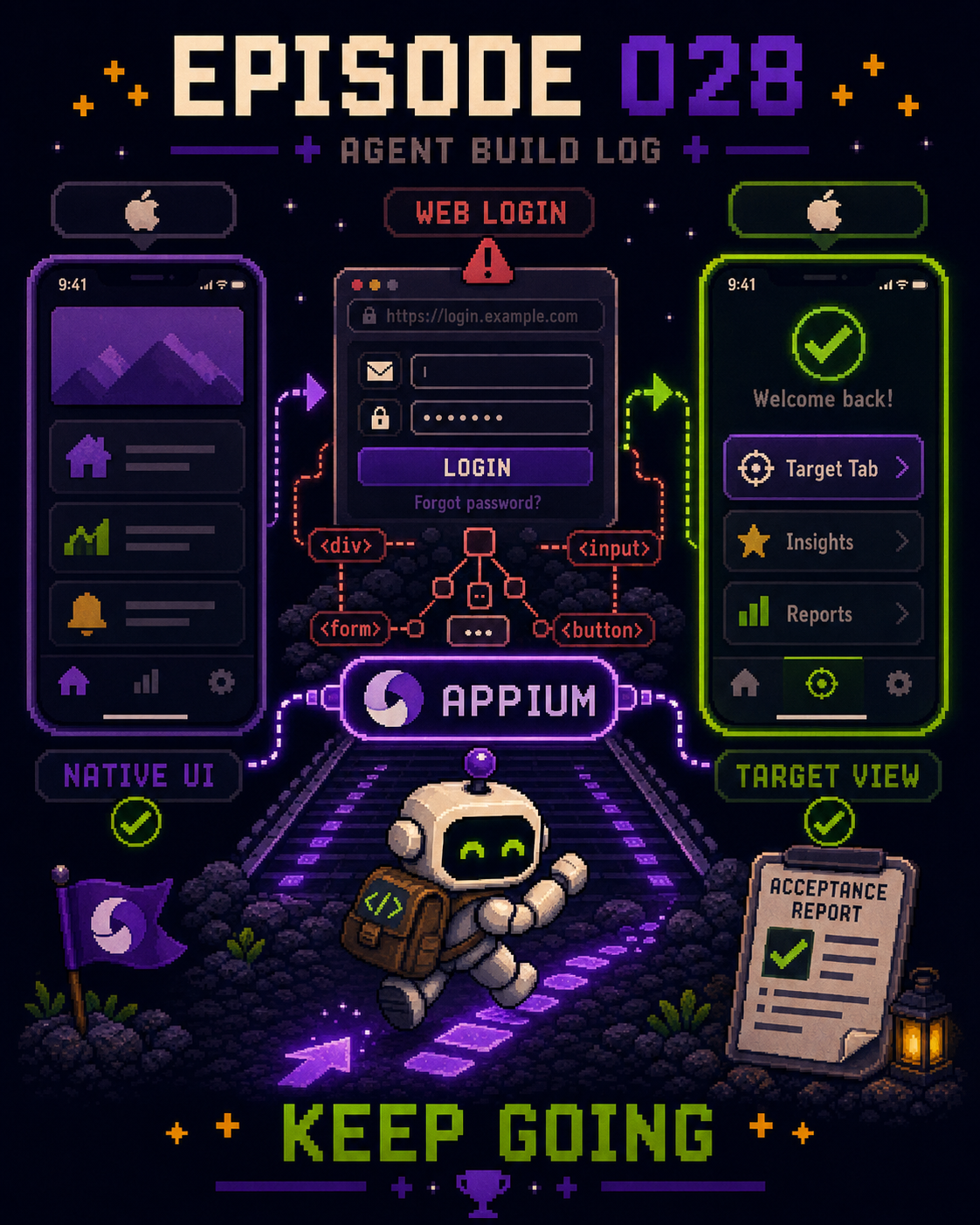
There is still one troublesome gap in the iOS acceptance workflow.
If the App uses native UI, the Agent can use XcodeBuildMCP to operate the Simulator, tap buttons, navigate between screens, and verify the App based on the spec in the Jira ticket.
But as soon as the login flow moves to a web page, it gets stuck.
XcodeBuildMCP can bring the Agent to the login screen, but it cannot directly interact with the DOM elements inside the webpage.
In other words:
The Agent can open the login page.
But it cannot complete the login by itself.
And if it cannot get past login, the rest of the acceptance workflow cannot even begin.
So today, I started looking for another approach.
What I found was Appium.
I discovered that Appium can access the DOM elements on the iOS web login page, which means the Agent has a way to handle the web login flow that XcodeBuildMCP cannot.
That fills the missing piece in the current acceptance workflow.
Native App UI can still be handled by XcodeBuildMCP.
When the flow reaches Web Login, the Agent switches to Appium, finds the corresponding input fields and buttons, and completes the login.
After login, it returns to the App.
At that point, the Agent can finally reach the target tab or ViewController that I actually want to verify.
From there, it can continue operating the App according to the Jira ticket spec and eventually generate the acceptance report.
So what I solved today may look like just a “login problem.”
But for the Acceptance capability, it was actually a very important missing piece.
If the Agent is going to perform real App acceptance testing, it cannot only know how to operate one type of UI.
It needs to be able to move through the entire flow:
App → Web Login → App → Target Page → Acceptance
In the previous episode, the Agent reached the login page and got stuck.
Today, I used Appium to let the Agent keep moving forward.